// Claude Code · Free PDF
Claude Code Desktop: every update in the "V2"
Every new feature of the Claude desktop app with its plan, where to click and the shortcuts, plus what you can actually do with it and seven workflows where the features work together.
At a glance
| Question | Short answer |
|---|---|
| New model? | No. The desktop app was rebuilt: chat and Cowork are one (Sept 16, 2026), and the Code tab is new (Oct 15, 2026). |
| Where does "V2" come from? | A developer on the Claude Code team posted on X on Oct 14, 2026: "I think of this almost like a v2". |
| Do I need to code? | No. You write normal sentences. "Code" is just the name of the area where Claude works with your files and folders. |
| What do I need? | A paid plan for the Code tab (Pro, Max, Team or Enterprise). Docs, Slides and Design are also on the Free plan. |
| What's inside? | 20 features explained one by one, 7 combined workflows, every shortcut for Mac and Windows, limits and a checklist for your first hour. |
What the video doesn't tell you
- "V2" isn't an official name. Anthropic doesn't call the app that. The post says "almost like a v2", so nearly a version 2.
- A lot of it only works in the Code tab. Nested sessions, the session rail, side chat, split view and mods live there, not in regular chat. The Code tab starts at Pro.
- Side chats aren't saved. Close the app and the side chat is gone. The official docs say so.
- Every nested session uses its own share of your limit. It sends its own requests. Ten parallel sessions use roughly ten times as much.
- "Master session" isn't an official term. Officially, one session can see and steer your other desktop sessions: by default the 20 most recently active.
- Mods run without a sandbox. A mod has the same rights you do. Only install mods whose source you know.
- There are more than six updates. Saved environments, the plan box, Projects, scheduled tasks, Storage and new artifact types didn't fit into the reel. They're all here.
The model is the same. What's new is how much you can get done with it at once. And don't be scared of the word code: you just write normal sentences.
Part 1 · The new Code tab
Three terms first. A session is a separate chat with its own memory. The context window is Claude's working memory inside that session. An environment is the place where Claude works: your computer, a server or the cloud.
1 · One Claude instead of chat and Cowork
Chat and Cowork (Claude's mode for longer tasks with files and apps) are now one conversation. You no longer pick a mode; chats, projects, connectors and skills come along.
Plan: rolling out to Pro and Max first, Team and Free follow, Enterprise since Oct 23, 2026; can't be switched back. Start: update the app, then give it a bigger task in chat.
- Creators: collect ideas first, then have Claude write the scripts as files into your folder.
- Small business: a quick question about an invoice, then "sort all invoices by month".
- Freelancers: research and the finished proposal as a file in one thread.
Template
Read the files in [folder], summarize what's in them and suggest three tasks you could do for me based on them.2 · Saved environments
You choose where a session works: Local (your computer), SSH (a server), WSL (Linux on Windows) or Cloud (Anthropic's servers, keeps running when the app is closed). Places you use often you save with their folder, branch and worktree setting.
Plan: Code tab, Pro and up; cloud counts toward your plan limit with no extra compute charge. Start: environment picker under the message box → New environment → Create environment, or Save as environment inside a session. Quick pick: Cmd+Option+1–9 / Ctrl+Alt+1–9.
- Agencies: one environment per client, every session starts in the right folder.
- Creators: reels locally, big rebuilds in the cloud, your laptop stays free.
- Web designers: edit the site on your own server over SSH without knowing the terminal.
Template
I'm about to start a bigger task in [folder]. Tell me whether it runs better locally or in the cloud, and why.3 · Nested sessions
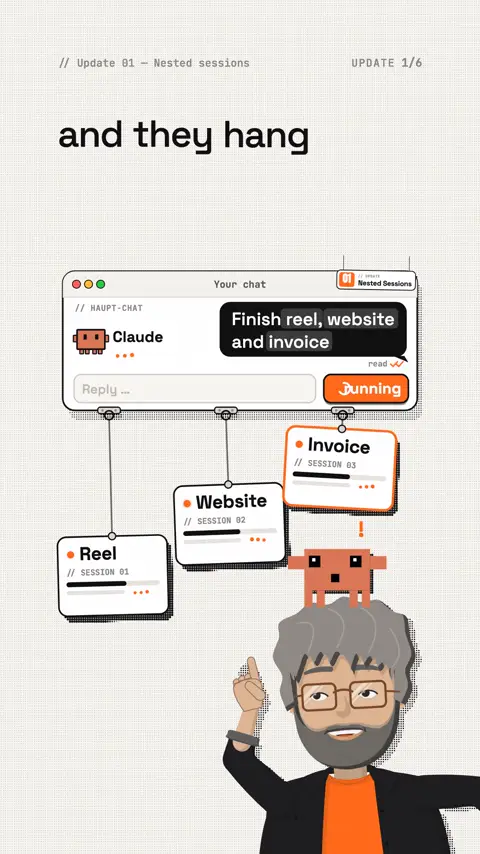
For a new task, Claude starts a separate session that sits under your chat in the sidebar and reports back. Unlike a subagent (a helper in the background that only returns a summary), it's a real chat you can open and keep steering.
Plan: Code tab, Pro and up, local and SSH sessions; each uses its own limit. Start: Claude suggests tasks as a card: Start (its own session), Do it here, Options (environment, model, permissions), Start all (all at once). Behavior under Settings › Claude Code.
- Creators: one session per reel, your main chat only collects the results.
- Freelancers: proposal, invoice and client email in parallel, each in its own chat.
- Agencies: one audit per client website, all with Start all.
Prompt to copy
Today I want to get [task 1], [task 2] and [task 3] done. Start a separate session for each task, tell me briefly what each will do first, and let me know when one is finished or needs a decision.4 · Plan box and next-step box
While Claude works, a box at the end of the conversation shows its plan. When a step is done, it shows a short recap with buttons for the next step. In an empty message box, Claude sometimes suggests a gray prompt.
Plan: Code tab, local and SSH sessions. Start: happens automatically; accept the gray suggestion with Tab or Right arrow, then Enter.
- Everyone: see what Claude is about to do and say "stop, differently" in time.
- Beginners: keep going with a button instead of writing the next prompt.
- Teams: pass the recap on as a status update.
Template
Before you start: show me your plan in five steps or fewer and wait for my OK.5 · Sessions that steer sessions
A session can list, read, rename and archive your other desktop sessions and send them messages. The message shows up there as a card with the sending session's name.
Plan: Code tab; sees only Local, SSH and WSL sessions, by default the 20 most recently active. Start: just ask. Claude asks before archiving (except in Auto mode).
- Creators: "Tell the caption session the keyword is now UPDATE."
- Freelancers: every Friday, "What happened this week per client?"
- Agencies: "Archive every session that's done."
Prompt to copy
Look at my other sessions. Which are done, which are still running and where is a decision waiting for me? Give me a short list, most urgent first.6 · Pinned, sections and Group and sort
Pin important sessions to the top (the list shows the first 20, plus "Show more"). Custom groups are now called sections. Group and sort arranges the list, including by environment.
Plan: Code tab, Pro and up. Start: hover over a heading in the list → Group and sort. Archive: View all → Archived. Sidebar: Cmd+B / Ctrl+B.
- Creators: main chat on top, sections "Reels", "Website", "Collabs" below.
- Agencies: one section per client, nothing lands in the wrong project.
- Small business: sections by area: bookkeeping, marketing, support.
Prompt to copy
Suggest a structure for my sessions: which ones to pin and which sections to create. Rename unclear sessions so I'll still understand them in a week.7 · Session rail
The panel to the right of the conversation. Its cards show where the session runs (Environment), how full the context window is (Context), which connectors are active, what was produced (Outputs), what changed (Changes), and which servers and background tasks are running.
Plan: Code tab, Pro and up. Start: Show session rail in the title bar; right-click a card header to choose the cards. The ring next to the model picker shows your plan usage.
- Everyone: see the context at 80 % and clean up in time.
- Creators: every finished file of a session at a glance in Outputs.
- Web designers: check the changed lines in Changes before anything goes live.
Prompt to copy
My context card is pretty full. What do you really need from it for the next task? Suggest which skills or connectors I can turn off for this session.8 · Remote Control
Continue a session running on your computer from your phone, a browser or the Claude app. Claude keeps working on your computer; the phone is just the window. You can attach photos and files from your phone.
Plan: Pro, Max, Team, Enterprise (Team/Enterprise: an Owner turns it on), not with an API key. Start: /remote-control (short /rc) or the switch in the Environment card; for all sessions, "Connect new sessions to Remote Control" in Settings › Claude Code. On your phone: claude.ai/code or the Claude app. Push notifications: /config in the terminal.
- Creators: send a photo on the go: "Use this as the background for scene 3."
- Freelancers: at a client's office, check whether the export is done and approve it.
- Everyone: a push to your phone when something is done or needs approval.
Prompt to copy
I'm heading out. Keep working on [task], only ask me about real decisions, and send me a push notification when you're done.9 · Keep awake and scheduled tasks
"Keep computer awake while Claude works" stops your computer from sleeping while Claude works (on battery too, if you want). With scheduled tasks, Claude starts tasks on its own at set times.
Plan: Code tab; local tasks only run while the app is open and the computer is awake, a closed lid means sleep. Start: keep awake under Settings › Claude Code. Tasks: Scheduled in the sidebar → New task (Hourly, Daily, Weekdays, Weekly, Manual, Custom), or just ask in a sentence.
- Creators: five reel ideas from your notes every Monday at 9 am.
- Small business: an overview of new orders every weekday.
- Agencies: a weekly link check of every client site.
Prompt to copy
Set up a scheduled task that does [task] every [weekday] at [time] and saves the result as a file in [folder]. If a run starts late, only cover the current day.10 · Side chat with /btw
A side question without disturbing the work in progress. The side chat reads the whole conversation so far but writes nothing back. It opens as its own pane next to the session.
Plan: Code tab, local, SSH and WSL sessions; not saved. Start: Cmd+; / Ctrl+; or /btw.
- Beginners: ask "What are you doing right now?" without cluttering the thread.
- Creators: test three hook variations while the script is being written.
- Freelancers: draft a status for the client while the work keeps running.
Template
/btw What have you changed in this session so far, and what's still open? Answer in three sentences.11 · Split view
Two sessions side by side or stacked. One works, you steer the other.
Plan: Code tab, Pro and up. Start: Option-click / Alt-click a session, or right-click → Open in → Split view. Take it out: Cmd+Ctrl+W / Ctrl+Alt+W. Own window: Cmd-click / Ctrl-click.
- Creators: script on the left, caption on the right.
- Web designers: the building session on the left, the copywriting one on the right.
- Agencies: client A and client B side by side on the big monitor.
Template
I've opened this session next to [other session]. Read what was made there and adjust your part so both fit together.12 · Projects (beta)
One ongoing project conversation. For each task, Claude starts a thread (a separate session), usually in the cloud. They all share instructions and a project memory; cloud threads keep running when your laptop is closed.
Plan: public beta, Pro and Max only, with a waitlist (claude.com/form/projects). New projects run on Opus at high effort and use limits faster. Start: Projects in the sidebar (or under More) → New project. The Overview shows Waiting on you, Library, Pull requests and Scheduled tasks.
- Creators: a "Channel" project, every reel idea a thread, style rules in project memory.
- Consultants: one project per engagement, answers land as files in the Library.
- Agencies: keep dropping in a client's requests, Claude works through them in parallel.
Prompt to copy
This is my project for [topic]. Remember these fixed rules: [rule 1], [rule 2]. Suggest threads first, run at most two at a time and wait for my OK.Part 2 · Artifacts
An artifact is a finished result that Claude builds next to the chat: a document, slides, a design, a dashboard. They all start private, and you share them as a link.
| Type | What it is | Plans | Status |
|---|---|---|---|
| Docs | Living documents, shared with Claude and your team | all, incl. Free | GA |
| Slides | Presentations, export to PowerPoint, PDF, Google Slides | all, incl. Free | GA |
| Design | Visuals, mockups, prototypes, landing pages | all, incl. Free | GA |
| Dashboards | Live data from databases or connected apps | Pro, Max, Team, Enterprise | Beta |
| Motion | Animated explainers written as code, MP4 export | Team, Enterprise only | Beta |
13 · Claude Docs
Documents you edit together with Claude and your team, in any conversation, in Claude Code and in the Artifacts tab.
Plan: all, incl. Free. Start: "Turn this into a doc".
- Freelancers: a project brief the client comments on instead of email ping-pong.
- Small business: work instructions Claude updates when things change.
- Creators: a collab brief for a brand.
Template
Turn our conversation into a doc for [recipient]: goal, process, dates, open questions. Short sentences, no jargon.14 · Claude Slides
Presentations from notes, reports or chat work, with a present mode and export to PowerPoint, PDF or Google Slides.
Plan: all, incl. Free. Start: e.g. "Turn these notes into a deck for Monday".
- Consultants: workshop slides from your bullet points.
- Agencies: the monthly report as a deck instead of a spreadsheet.
- Creators: a media kit for brand deals.
Prompt to copy
Turn [notes/file] into a deck of at most [number] slides for [audience]. One key message per slide, big numbers, a clear next step at the end.15 · Claude Design and design systems
Visuals, mockups, prototypes and landing pages in chat. A design system is your fixed set of colors, fonts and building blocks, so everything looks like your brand.
Plan: all, incl. Free. Start: describe the design in chat. Bring team design systems over on the Artifacts page with Migrate team design systems. Hand off to Claude Code (menu under the design's name) has Claude build the design as a real page in the Code tab.
The old claude.ai/design site only stays up until December 14, 2026. Chats, comments and public links there are gone after that. Migrate first.
- Web designers: clickable prototype, client sign-off, then build it via hand-off.
- Small business: flyers, promo banners and social graphics in your own design.
- Creators: thumbnail drafts in three variations.
Prompt to copy
Design a landing page for [offer] in the style of my design system: a hero with the benefit in one sentence, three advantages, pricing, FAQ, one clear button. Show me two variations.16 · Claude Dashboards (beta)
Live dashboards from BigQuery, Snowflake, Databricks, Redshift, ClickHouse or connected apps like Salesforce. Every chart shows its query and when it was last refreshed.
Plan: Pro, Max, Team, Enterprise (there the admin turns it on). Start: connect a data source, then ask: "Build a dashboard of this quarter's revenue by region".
- Agencies: one link per client instead of a PDF report at month's end.
- Online shops: revenue, returns and bestsellers per week.
- Sales: your Salesforce pipeline without weekly spreadsheets.
Prompt to copy
Build me a dashboard from [data source] with [metric 1], [metric 2] and [metric 3] per week. Show for every chart where the numbers come from.17 · Claude Motion (beta)
Animated explainers, charts and walkthroughs. Claude writes them as code (it's not a video model), and you download them as MP4.
Plan: Team and Enterprise only (admin turns it on); Pro and Max don't have Motion. Start: type /motion in the message box.
- Marketing teams: an animated product walkthrough for the website.
- Agencies: metrics as an animated chart for the client newsletter.
- Training: short explainers for new hires.
Template
/motion Explain in 30 seconds how [product] works: three steps, big type, ending with our logo and [call to action].18 · AI-powered artifacts
Artifacts that use Claude themselves, e.g. a chat box inside a dashboard. In settings this is now called "Artifacts that use Claude" (Settings › Capabilities).
Plan: usage counts toward the plan of the person using it; no API key needed. New artifacts ask for permission the first time. Start: say in your prompt that the artifact should ask Claude itself.
- Consultants: a self-assessment that scores answers and gives tips.
- Creators: a hook generator for your community.
- Small business: an FAQ helper that answers from your documents.
Prompt to copy
Build an artifact that uses Claude itself: visitors enter [input] and get [result] in three points. Keep the interface simple and explain at the top in one sentence what it does.19 · Sharing and comments
Share artifacts with "Anyone with the link" and the permissions Can view, Commenter or Can edit. Viewers need a Claude account. In comments you can ask Claude directly.
Plan: all; in companies, the admin decides whether you can share outside. Start: the share button on the artifact, pick a permission, copy the link.
- Freelancers: the client comments, Claude applies the comments.
- Teams: a feedback round without email, all on the document.
- Creators: partners get "Commenter", never "Can edit".
Template
Read every comment on this artifact, apply the clear ones and list the ones where I need to decide.Part 3 · Mods, commands and shortcuts
20 · Mods
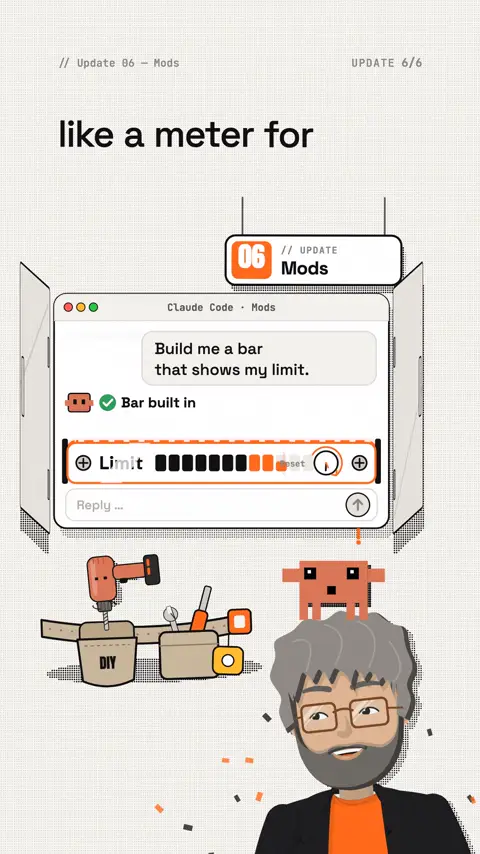
Mods change how Claude Code looks and behaves: a bar above the message box, a pane of its own, a new command, a guard before certain actions. You describe what you're missing and Claude writes the mod (official docs).
Plan: Code tab (from v2.1.286), terminal and VS Code, not in regular chat; runs without a sandbox, with your rights. Start: describe it in a Code session; install ready-made mods with /plugin install.
- Everyone: a display of how much limit is left and when it resets.
- Creators: a band with your reel's status: script, voice, render, export.
- Agencies: a guard that asks before Claude deletes anything in a client folder.
Prompt to copy
Build me a mod for Claude Code: a slim bar above the message box that shows [what you want to see]. Explain first in simple words what the mod is allowed to do and how I turn it off again./plugin install ribbon --marketplace robonuggets/ribbon
savvy-progress · JohnnyVizz/claude-kitgithub.com a progress bar and an overview of all running subagents, by Eugene (@savvyntsev).
Useful commands
| Command | What it does |
|---|---|
/btw | Side question in a side chat, without disturbing the session |
/remote-control | Turn Remote Control on or off for this session (short /rc) |
/compact | Summarize the conversation early, frees up context |
/rewind | Roll the conversation and/or code back to an earlier point |
/recap | A one-sentence summary of the session |
/skill-doctor | Shows how much context each skill costs and how often it's used |
/doctor | Checks your setup and suggests fixes (also /checkup) |
/insights | HTML report on your recent sessions |
/advisor | Brings in a second, usually stronger model (experimental, API only, costs extra) |
/output-style | Switch the answer style, e.g. shorter |
/storage | Shows how much disk space Claude uses and cleans up old sessions |
/motion | Starts a Motion artifact (Team, Enterprise) |
/mobile | QR code for the Claude app on your phone |
Every shortcut (Code tab)
| Action | Mac | Windows |
|---|---|---|
| Show all shortcuts | Cmd + / | Ctrl + / |
| New session | Cmd + N | Ctrl + N |
| Pick environment | Cmd + Option + 1–9 | Ctrl + Alt + 1–9 |
| New environment | Cmd + Option + 0 | Ctrl + Alt + 0 |
| Close session | Cmd + W | Ctrl + W |
| Switch session | Ctrl + Tab | Ctrl + Tab |
| Next / previous session | Cmd + Shift + ] / [ | Ctrl + Shift + ] / [ |
| Side chat | Cmd + ; | Ctrl + ; |
| Split view | Option + click | Alt + click |
| Out of split view | Cmd + Ctrl + W | Ctrl + Alt + W |
| Own window | Cmd + click | Ctrl + click |
| Sidebar | Cmd + B | Ctrl + B |
| Changes (diff) | Cmd + Shift + D | Ctrl + Shift + D |
| Browser pane | Cmd + Shift + B | Ctrl + Shift + B |
| Select element in browser | Cmd + Shift + S | Ctrl + Shift + S |
| Terminal | Ctrl + ` | Ctrl + ` |
| Close pane | Cmd + \ | Ctrl + \ |
| Cycle view modes | Ctrl + O | Ctrl + O |
| Model / permissions / effort | Cmd + Shift + I / M / E | Ctrl + Shift + I / M / E |
| Accept suggestion | Tab or Right arrow | Tab or Right arrow |
| Stop response | Esc | Esc |
| Quick Entry | Option twice or Option + Space | Mac only |
Voice input on Mac: Caps Lock (macOS 14+, turn it on under "Voice shortcut" in settings). Windows shortcuts you may see online, like Ctrl + Alt + Space or Ctrl + D, we couldn't find in any official source.
Part 4 · Combining features
On their own, the updates are nice. Together they replace half a working day. Seven workflows I use like this or close to it.
One feature saves you minutes. Three that work together save you the afternoon.
Workflow 1 · Content day with a main chat
Goal: five pieces of content in one day without chaos. Features: pinned, nested sessions, split view, side chat, Remote Control.
- Create a main chat called "Today", pin it and write the day's tasks into it.
- Start them all as nested sessions (Start all), put the two most important side by side with Option-/Alt-click.
- Ask in-between questions in the side chat with Cmd+; / Ctrl+;.
- Before you head out,
/rc, then approve from your phone.
Prompt to copy
Today you're my main chat. My tasks: [list]. Start a separate session for each, keep a status list here (open, running, done, waiting on me) and update it when I ask.Watch out: every session uses its own limit. Start with three, not ten.
Workflow 2 · Keep long sessions healthy
Goal: one big task over hours without Claude getting forgetful. Features: Context card, side chat, /recap, /compact, /rewind, nested sessions.
- Keep an eye on the Context card, always put clarifying questions in the side chat.
- At about three quarters full:
/recap, then/compact. - Move new subtasks into nested sessions instead of piling them on here.
- If something went wrong:
/rewindinstead of long corrections.
Prompt to copy
We're working on [task] for a long time today. Keep writing the key decisions into [file] so nothing gets lost after a summary, and suggest which subtasks should get their own session.Watch out: side chats disappear when you close the app. Have anything important written to a file.
Workflow 3 · The client portal
Goal: numbers, report and an assistant for your client under one link. Features: dashboards, AI-powered artifacts, docs, sharing and comments.
- Connect the data source and build a dashboard with the three most important metrics.
- Add a chat box that answers questions about the numbers; put the monthly report next to it as a doc.
- Share by link with Commenter permission.
- Have Claude apply the client's comments once a week.
Prompt to copy
Build a dashboard for [client] from [data source] with [metrics] and a chat box below it that answers questions about exactly these numbers and refers everything else to me.Watch out: dashboards are in beta. Your client needs a Claude account, and the chat box counts toward their plan. Only connect client data with their consent.
Workflow 4 · Tune your setup
Goal: less wasted context, more overview. Features: /skill-doctor, /doctor, /insights, mods.
/skill-doctor: which skills cost a lot of context and are barely used?/doctor: check your setup and apply the suggestions./insights: where do your recent sessions keep getting stuck?- Have a mod built for the biggest annoyance.
Prompt to copy
Here are the results of /skill-doctor and /insights: [paste]. What should I turn off, merge or automate as a mod? Sort by time saved.Watch out: third-party mods have your rights. Have the code explained before installing.
Workflow 5 · Work while you're away
Goal: Claude keeps working while you steer from your phone. Features: Projects, cloud environment, Remote Control, keep awake, scheduled tasks.
- Start big tasks as a project or cloud session; they keep running with your laptop closed.
- Keep what needs your files local: keep awake on, charger in, lid open.
- Turn on Remote Control so you see everything on your phone.
- Set up recurring work as a scheduled task.
Prompt to copy
I'll be away for [time]. Split the tasks in [list]: what can run in the cloud and what needs my computer. Only ask me about decisions and send a push notification when something is done.Watch out: projects start on Opus at high effort; lower Thread model and Thread effort in Project settings › General. With Remote Control, the transcript is stored on Anthropic's servers.
Workflow 6 · From design to a finished page
Goal: from idea to live page in one afternoon. Features: Design, design system, comments, Hand off to Claude Code, browser pane, split view.
- Design the landing page as a Design artifact in your own design system.
- Share it with the client as Commenter and have the comments worked in.
- Hand off to Claude Code: Claude builds the page, you check it in the browser pane (Cmd+Shift+B / Ctrl+Shift+B).
- Next to it in split view, a session for copy and SEO.
Prompt to copy
Build this design as a page in [folder]. Start the preview in the browser pane, check it at phone size and list everything that differs from the design.Watch out: you use your clients' logos and brands at your own responsibility. claude.ai/design closes on Dec 14, 2026.
Workflow 7 · Keep clients cleanly apart
Goal: ten clients, zero mix-ups. Features: environments, sections, Group and sort, worktree, sessions that steer sessions.
- One environment with its own folder and one section per client; Group and sort by environment.
- For code projects, use the Worktree button: every session gets its own working copy.
- Every Friday, ask the main chat for the week's status per client.
Prompt to copy
Go through all of this week's sessions and write me three lines per client: what's done, what's open, what I should send the client.Watch out: Claude only sees the 20 most recently active desktop sessions. Ask for older ones specifically.
Plans overview
| Feature | Free | Pro / Max | Team | Enterprise |
|---|---|---|---|---|
| Docs, Slides, Design | yes | yes | yes | yes |
| Dashboards (beta) | no | yes | yes | yes (admin) |
| Motion (beta) | no | no | yes | yes (admin) |
| Code tab: sessions, rail, side chat, split view, mods | no | yes | yes | yes |
| Remote Control | no | yes | yes (Owner) | yes (Owner) |
| Projects (beta) | no | yes, waitlist | no | no |
| One Claude (chat + Cowork) | coming | rolling out | coming | yes |
What else is new
| Feature | What it does |
|---|---|
| Storage | Settings › Storage or /storage: see disk use, clean up old sessions |
| Notifications | The app tells you when a session you're not looking at finishes |
| Worktree | A separate working copy per session, so parallel sessions don't collide |
| Browser pane | Claude starts your site and checks it ("Auto-verify changes") |
| Background tasks | Overview of subagents and background commands (⋮ menu) |
| Dispatch | Send tasks from your phone to your desktop; beta, existing users only |
| Open in › Cloud | Let a local session continue in the cloud |
Who gets what out of it
| Who | Problem | What you do |
|---|---|---|
| Creators | Everything in one long chat | Content day (Workflow 1) |
| Freelancers | Client projects get mixed up | Environments and sections (Workflow 7) |
| Agencies | The client wants to see numbers | Client portal (Workflow 3) |
| Web designers | Design and build are separate | Design to live page (Workflow 6) |
| Small business | Recurring reports | A scheduled task every Monday |
| On the go | Your computer runs, you don't | Remote Control with push (Workflow 5) |
Limits and risks
- Limits: nested sessions, Projects, cloud sessions and
/advisoruse a lot more. Keep an eye on the ring next to the model picker. - Third-party mods: they run with your rights. Have the code explained before you install.
- Beta: Dashboards, Motion, Projects and Dispatch can change.
- Data: with Remote Control, cloud sessions and Projects, content sits on Anthropic's servers. Client data only with their OK. Extra protection: "Require trusted devices" in settings (Remote Control in detail).
- Sleep: local sessions, scheduled tasks and Remote Control need an awake computer.
- Sharing and brands: check the link permission before sharing. You use your clients' logos and material at your own responsibility.
Your first hour
- Update the desktop app and open the Code tab
- Save a folder as an environment (e.g. "Reels" or "Client A")
- Turn on Show session rail and look at the Context card
- Pin a main chat and try the nested sessions prompt with three real tasks
- While something runs, ask a side question with Cmd + ; (Ctrl + ;)
- Type
/rcand open the session on your phone - Run
/skill-doctorand turn off one skill you don't use
My tip
Start with two things: a pinned main chat and nested sessions. That's how I run reels, websites and client projects every day, and that's exactly what I'll show you in the next reel. You don't have to learn all twenty features, just the three that carry your day together.
All links, features, plans and shortcuts checked on Oct 29, 2026 on Anthropic's official pages. Topic source: the video "Anthropic Just Shipped Claude 2.0" by Jay E (RoboNuggets).
The reel on this topic
This reel was made with Mentor Reels
Mentor Reels is a skill for Claude Code. From one prompt it makes a finished explainer reel with voice, animation, post texts and a PDF just like this one.
Read the transcript
Claude V two? What is it? The latest update to Claude Code Desktop is almost like a version two, says a developer on the Claude Code team himself. Not a new model, but an update whose potential most people haven't seen yet. Don't panic about the word code: nobody here has to code. Six updates, and with the last one you rebuild the app yourself. First: nested sessions. Claude starts its own sessions for new tasks, and they hang under your chat and report back. Unlike subagents, these are real chats you can steer yourself. Second: the session rail, with Remote Control for your phone and Claude's working memory in view. Third: with slash B-T-W you ask on the side, without interrupting the work. Fourth: split view, two chats side by side with Option- or Alt-click. Fifth: artifacts. Docs, slides and designs right in the chat, and from Pro, live dashboards. And sixth: mods. You describe what's missing, and Claude builds it in, like a meter for your limit. How I run my daily reels, websites and client projects with it, I'll show you in the next reel. Follow me so you don't miss it, and comment update for every feature with keyboard shortcuts.
Frequently asked questions
Is Claude V2 a new model?
No. The desktop app was rebuilt: chat and Cowork are one, and the Code tab is new. "V2" isn't an official name. A developer on the Claude Code team posted on X that the update is "almost like a v2".
Do I need to code to use Claude Code?
No. You write normal sentences. "Code" is just the name of the area where Claude works with your files and folders.
Which plan do I need for the new features?
The Code tab with nested sessions, the session rail, side chat, split view and mods needs a paid plan: Pro, Max, Team or Enterprise. Docs, Slides and Design are also on the Free plan. Motion is only available on Team and Enterprise.
What's the difference between a nested session and a subagent?
A subagent works in the background and only returns a summary. A nested session is a real chat that hangs under your chat in the sidebar, and you can open it and steer it yourself. Every nested session uses its own share of your limit.
What does /btw do in Claude Code?
/btw opens a side chat for a quick question without interrupting the running work. It reads the conversation so far but writes nothing back. Shortcut: Cmd+; on Mac, Ctrl+; on Windows. Side chats aren't saved.
Are Claude Code mods safe?
Mods run without a sandbox and have the same rights you do. Only install mods whose source you know, and ask Claude to explain the code before you install one.
Keywords
Goes well with
-
// Claude Code & the desktop app
My Claude V2 blueprint: every project from one main chat
One main chat, one session per step: how I pitch an idea in Claude Code, roast it, check it against real search numbers and build it.
-
// Skills, repos & add-ons
How to choose the right Claude skills: find your perfect skill combo
Why more skills don't help more, what skills.sh really shows, and how Claude finds the right combo with you.
Claude Code Desktop: every update in the "V2"
What's inside the new Claude desktop app: 20 features with plan, where to click and shortcuts, plus seven workflows where they work together.